![[WPF] Serializable 특성 사용하여 XML/JSON으로 저장하기](https://3001ssw.com/wp-content/uploads/2026/01/blog_main_banner4.png)
이번 글에서는 Serializable 특성 사용하여 XML, Json 파일로 저장해보도록 하겠습니다. 프로그램을 만들다 보면 이제 객체를 파일로 저장하거나 네트워크를 통해 전송해야할 일이 생깁니다. 이때 객체를 저장하거나 전송할 수 있는 데이터 형태로 직렬화 하거나 또는 데이터를 다시 객체로 만드는 역직렬화를 해야합니다. C#에서는 클래스 바로 위에 [Serializable] 특성을 사용하여 클래스가 직렬화 될 준비가 되었음을 알립니다.
객체 만들기 – UserInfo
우선 직렬화할 객체를 만들어 줍니다. 사용자의 정보를 담는 UserInfo 클래스를 아래처럼 만들어줍니다.
[Serializable]
public class UserInfo : BindableBase
{
    #region fields, properties
    private string name = "";
    public string Name { get => name; set => SetProperty(ref name, value); }

    private int age = 0;
    public int Age { get => age; set => SetProperty(ref age, value); }

    private string gender = "남";
    public string Gender { get => gender; set => SetProperty(ref gender, value); }

    #endregion

    public UserInfo()
    {

    }
}
맨 위 [Serializable]을 입력하여 직렬화 할 수 있는 객체로 만들어줍니다.
MainWindow.xaml, MainViewModel.cs
아래와 같은 UI를 만들어보도록 하겠습니다.
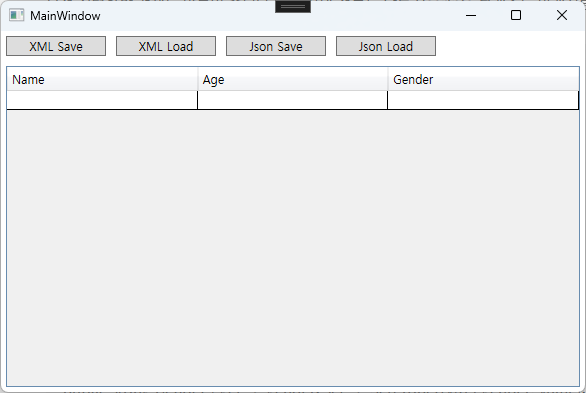
MainWindow.xaml을 아래와 같이 만들어줍니다.
<Window x:Class="WpfISerializable.MainWindow"
        xmlns="http://schemas.microsoft.com/winfx/2006/xaml/presentation"
        xmlns:x="http://schemas.microsoft.com/winfx/2006/xaml"
        xmlns:d="http://schemas.microsoft.com/expression/blend/2008"
        xmlns:mc="http://schemas.openxmlformats.org/markup-compatibility/2006"
        xmlns:local="clr-namespace:WpfISerializable"
        mc:Ignorable="d"
        Title="MainWindow"
        Height="400"
        Width="600">
    <Window.DataContext>
        <local:MainViewModel/>
    </Window.DataContext>
    <Grid>
        <Grid.RowDefinitions>
            <RowDefinition Height="30"/>
            <RowDefinition Height="1*"/>
        </Grid.RowDefinitions>

        <StackPanel Grid.Row="0"
                    Orientation="Horizontal">
            <Button Content="XML Save"
                    Width="100"
                    Margin="5"
                    Command="{Binding XmlSaveCommand}"/>
            <Button Content="XML Load"
                    Width="100"
                    Margin="5"
                    Command="{Binding XmlLoadCommand}"/>
            <Button Content="Json Save"
                    Width="100"
                    Margin="5"
                    Command="{Binding JsonSaveCommand}"/>
            <Button Content="Json Load"
                    Width="100"
                    Margin="5"
                    Command="{Binding JsonLoadCommand}"/>
        </StackPanel>

        <DataGrid Grid.Row="1"
                  ItemsSource="{Binding Users}"
                  IsReadOnly="False"
                  AutoGenerateColumns="False"
                  CanUserAddRows="True"
                  HeadersVisibility="Column"
                  VirtualizingStackPanel.ScrollUnit="Pixel"
                  VirtualizingStackPanel.VirtualizationMode="Recycling"
                  ScrollViewer.CanContentScroll="True"
                  SelectionUnit="FullRow"
                  Margin="5">

            <DataGrid.Columns>
                <DataGridTextColumn Header="Name"
                                    Binding="{Binding Name, Mode=TwoWay, UpdateSourceTrigger=PropertyChanged}"
                                    Width="*"/>
                <DataGridTextColumn Header="Age"
                                    Binding="{Binding Age, Mode=TwoWay, UpdateSourceTrigger=PropertyChanged}"
                                    Width="*"/>
                <DataGridTextColumn Header="Gender"
                                    Binding="{Binding Gender, Mode=TwoWay, UpdateSourceTrigger=PropertyChanged}"
                                    Width="*"/>
            </DataGrid.Columns>
        </DataGrid>
    </Grid>
</Window>
그 다음 MainViewModel.cs를 만들어서 바인딩을 해줍니다.
public class MainViewModel : BindableBase
{
    #region fields, properties
    private ObservableCollection<UserInfo> uers = new ObservableCollection<UserInfo>();
    public ObservableCollection<UserInfo> Users { get => uers; set => SetProperty(ref uers, value); }
    #endregion

    #region commands
    public DelegateCommand XmlSaveCommand { get; private set; }
    public DelegateCommand XmlLoadCommand { get; private set; }
    public DelegateCommand JsonSaveCommand { get; private set; }
    public DelegateCommand JsonLoadCommand { get; private set; }
    #endregion


    public MainViewModel()
    {
        XmlSaveCommand = new DelegateCommand(OnXmlSave, CanXmlSave);
        XmlLoadCommand = new DelegateCommand(OnXmlLoad, CanXmlLoad);

        JsonSaveCommand = new DelegateCommand(OnJsonSave, CanJsonSave);
        JsonLoadCommand = new DelegateCommand(OnJsonLoad, CanJsonLoad);
    }

    private void OnXmlSave()
    {
    }

    private bool CanXmlSave()
    {
        return true;
    }

    private void OnXmlLoad()
    {
    }

    private bool CanXmlLoad()
    {
        return true;
    }

    private void OnJsonSave()
    {
    }

    private bool CanJsonSave()
    {
        return true;
    }

    private void OnJsonLoad()
    {
    }

    private bool CanJsonLoad()
    {
        return true;
    }
}
XML
XML 파일로 저장해보겠습니다. OnXmlSave 함수를 아래와 같이 정의합니다.
private void OnXmlSave()
{
    SaveFileDialog saveFileDialog = new SaveFileDialog();
    saveFileDialog.Filter = "XML Files (*.xml)|*.xml|All Files (*.*)|*.*";
    saveFileDialog.DefaultExt = "xml";
    saveFileDialog.FileName = "users.xml";

    if (saveFileDialog.ShowDialog() == true)
    {
        try
        {
            string filePath = saveFileDialog.FileName;
            XmlSerializer serializer = new XmlSerializer(typeof(ObservableCollection<UserInfo>));
            using (StreamWriter writer = new StreamWriter(filePath))
            {
                serializer.Serialize(writer, Users);
            }
        }
        catch (Exception)
        {
        }
    }
}
그 다음 OnXmlLoad 함수를 아래처럼 만들어줍니다.
private void OnXmlLoad()
{
    OpenFileDialog openFileDialog = new OpenFileDialog();
    openFileDialog.Filter = "XML Files (*.xml)|*.xml|All Files (*.*)|*.*";
    openFileDialog.InitialDirectory = AppDomain.CurrentDomain.BaseDirectory;

    if (openFileDialog.ShowDialog() == true)
    {
        try
        {
            string filePath = openFileDialog.FileName;
            XmlSerializer serializer = new XmlSerializer(typeof(ObservableCollection<UserInfo>));
            using (StreamReader reader = new StreamReader(filePath))
            {
                var data = (ObservableCollection<UserInfo>)serializer.Deserialize(reader);
                Users = data;
            }
        }
        catch (Exception ex)
        {
        }
    }
}
실행하여 XML 파일로 잘 저장/로드 하는지 확인해봅니다.
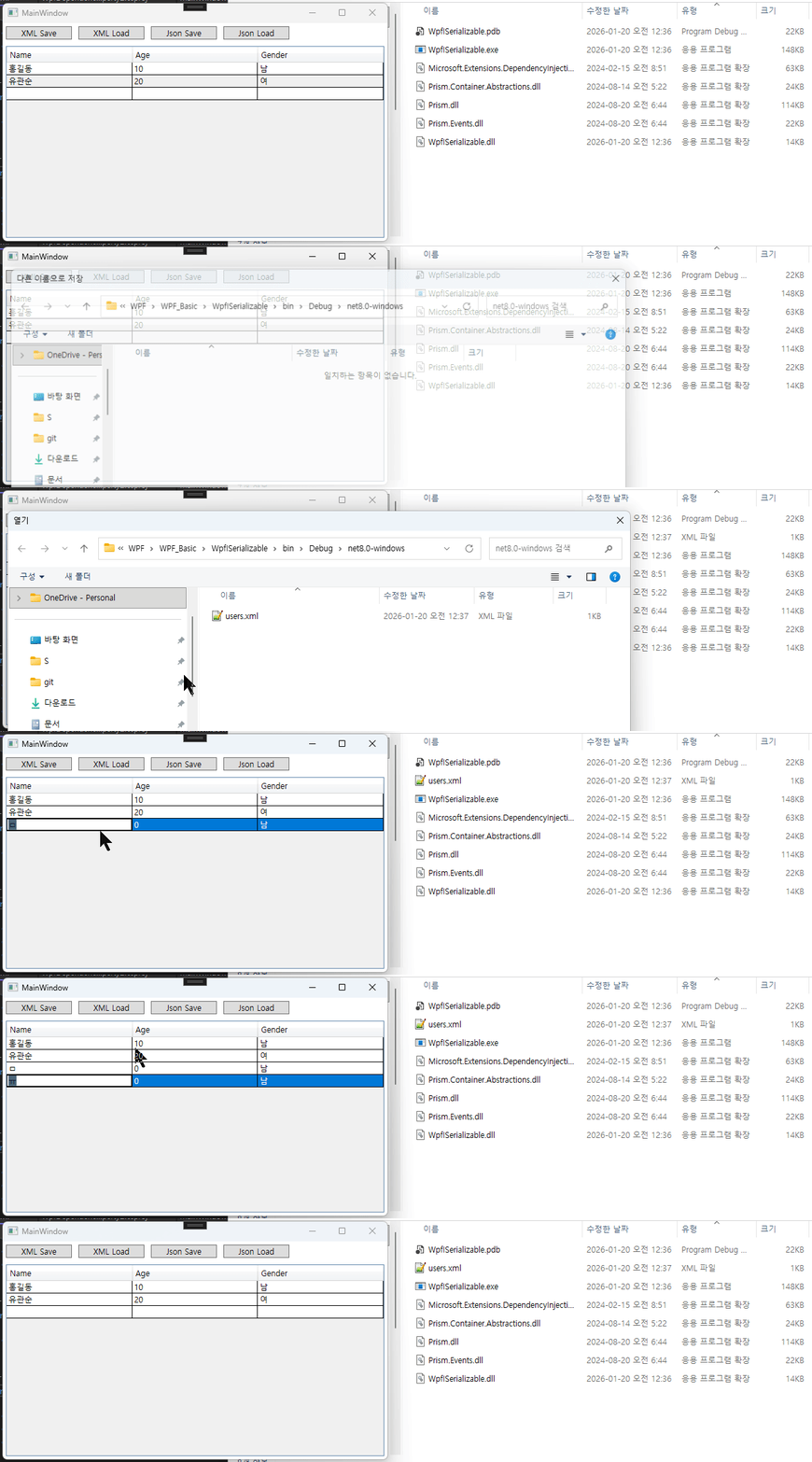
저장된 파일을 보면 아래와 같습니다.
<?xml version="1.0" encoding="utf-8"?>
<ArrayOfUserInfo xmlns:xsi="http://www.w3.org/2001/XMLSchema-instance" xmlns:xsd="http://www.w3.org/2001/XMLSchema">
  <UserInfo>
    <Name>홍길동</Name>
    <Age>10</Age>
    <Gender>남</Gender>
  </UserInfo>
  <UserInfo>
    <Name>유관순</Name>
    <Age>20</Age>
    <Gender>여</Gender>
  </UserInfo>
</ArrayOfUserInfo>
Json
json 파일로 저장하는 코드는 아래와 같습니다. OnJsonSave 함수를 아래처럼 만들어줍니다.
private void OnJsonSave()
{
    SaveFileDialog saveFileDialog = new SaveFileDialog();
    saveFileDialog.Filter = "JSON Files (*.json)|*.json|All Files (*.*)|*.*";
    saveFileDialog.DefaultExt = "json";
    saveFileDialog.FileName = "users.json";

    if (saveFileDialog.ShowDialog() == true)
    {
        try
        {
            string filePath = saveFileDialog.FileName;
            var options = new JsonSerializerOptions
            {
                WriteIndented = true,
            };

            string jsonString = JsonSerializer.Serialize(Users, options);
            File.WriteAllText(filePath, jsonString);
        }
        catch (Exception)
        {
        }
    }
}
json Load 함수도 만들어줍니다.
private void OnJsonLoad()
{
    OpenFileDialog openFileDialog = new OpenFileDialog();
    openFileDialog.Filter = "JSON Files (*.json)|*.json|All Files (*.*)|*.*";
    openFileDialog.InitialDirectory = AppDomain.CurrentDomain.BaseDirectory;

    if (openFileDialog.ShowDialog() == true)
    {
        try
        {
            string filePath = openFileDialog.FileName;
            string jsonString = File.ReadAllText(filePath);
            var data = JsonSerializer.Deserialize<ObservableCollection<UserInfo>>(jsonString);
            if (data != null)
            {
                Users = data;
            }
        }
        catch (Exception)
        {
        }
    }
}
실행하여 확인해봅니다.
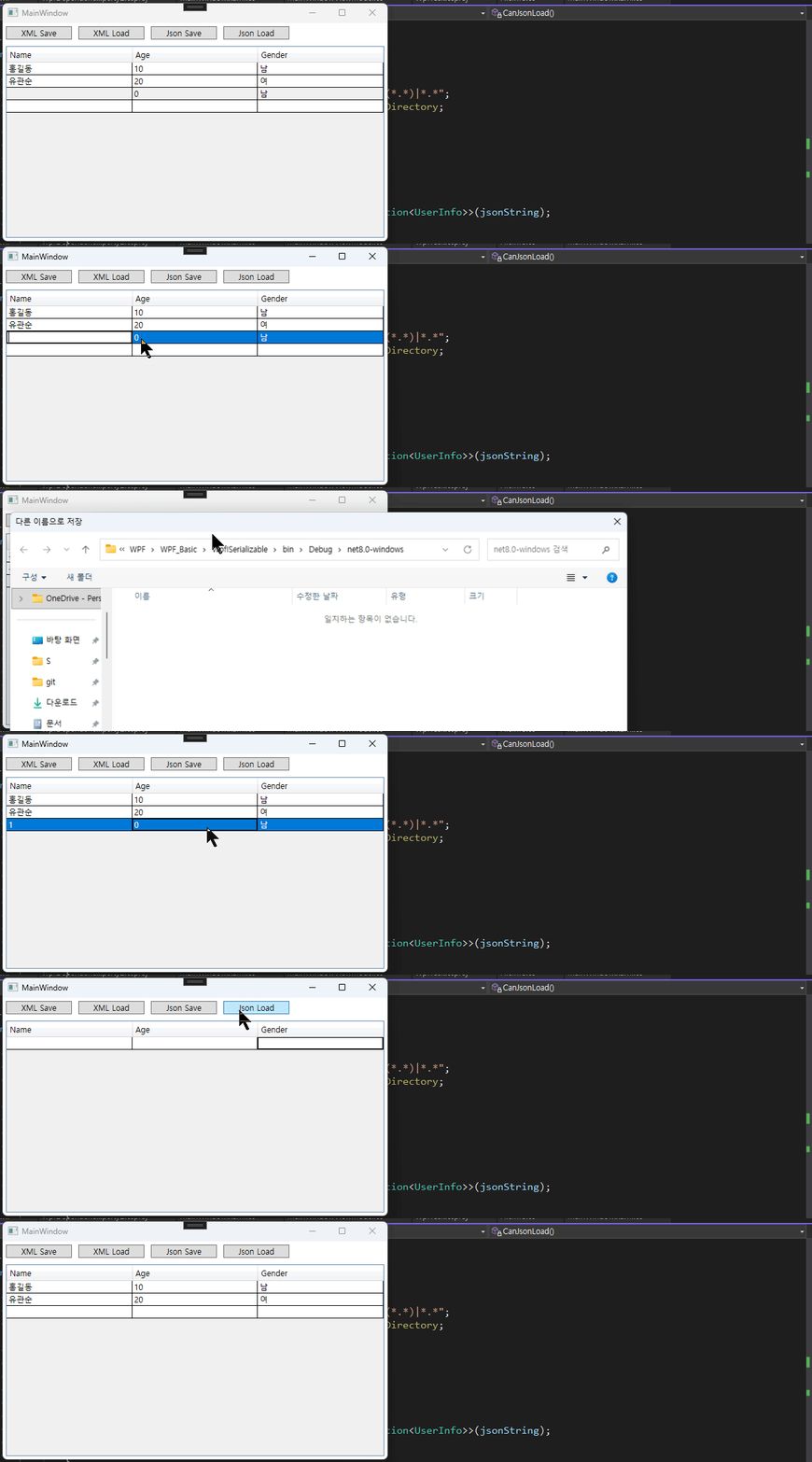
저장된 json 파일을 보면 아래와 같이 되어있습니다.
[
  {
    "Name": "\uD64D\uAE38\uB3D9",
    "Age": 10,
    "Gender": "\uB0A8"
  },
  {
    "Name": "\uC720\uAD00\uC21C",
    "Age": 20,
    "Gender": "\uC5EC"
  }
]
Ignore
추가적으로 XML이나 JSON에 데이터를 저장하고 싶지 않으면 해당하는 속성 위에 [XmlIgnore] 또는 [JsonIgnore] 특성을 넣어주면 됩니다.
[Serializable]
public class UserInfo : BindableBase
{
    #region fields, properties
    private string name = "";
    public string Name { get => name; set => SetProperty(ref name, value); }

    private int age = 0;
    [XmlIgnore]
    public int Age { get => age; set => SetProperty(ref age, value); }

    private string gender = "남";
    [JsonIgnore]
    public string Gender { get => gender; set => SetProperty(ref gender, value); }

    #endregion

    public UserInfo()
    {

    }
}
이상으로 글을 마치겠습니다.